In a previous post, Debug an MPI code with GDB and Xterm,
I mentioned the awkwardness of using xterm.
Fortunately, Arno Mayrhofer introduced tmpi, a clever idea that leverages tmux for MPI debugging.
tmux is a terminal multiplexer. It does not require an X11 server, so no special setup is needed either locally or remotely. It is commonly available on Unix-like systems, so you usually do not need to install it yourself.
When tmux starts, it creates a new session with a single window. A window can be further split into rectangular panes, each of which acts as a separate pseudo terminal. The following figure shows the pane layout in tmux.
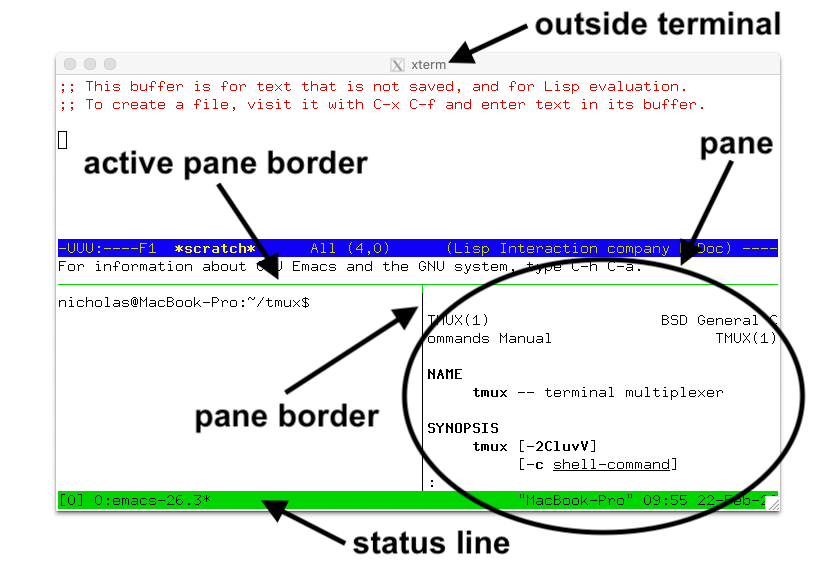
The idea behind tmpi is to run MPI processes in a grid of panes within a tmux window and multiplex keyboard input to all of them.
Since tmpi is a bash script, installation is as simple as copying the script:
$ cd $HOME
$ git clone https://github.com/Azrael3000/tmpi.git
$ chmod 700 tmpi/tmpi
$ export PATH=$HOME/tmpi:$PATH
Usage is straightforward. For example, suppose we want to debug a program ex2 with four MPI processes:
$ tmpi 4 gdb --args ./ex2 -mat_type aij
This command immediately splits the screen into four panes:
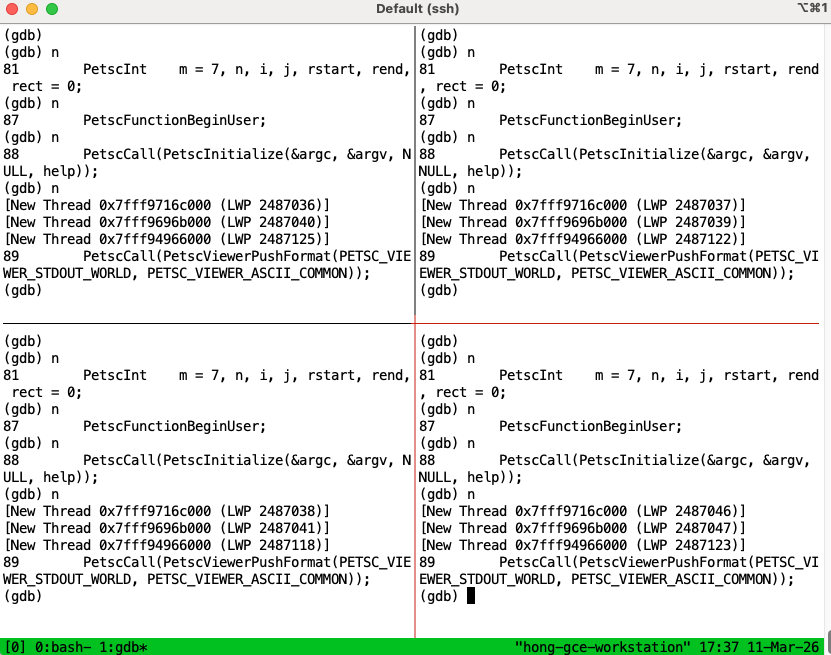
tmux can multiplex keyboard input to all panes, and this feature is already enabled by tmpi. As a result, you can control all processes by typing in a single pane, which is a major improvement over xterm.
Sometimes you may want to focus on debugging a single process. Select the pane and press C-b z, which means press Ctrl and b at the same time, release them, then press z. This zooms in on the current pane and gives it exclusive keyboard focus. To return to the previous layout, press C-b z again.
Here C-b is the tmux prefix key; the following key issues a command to tmux.
tmpi arranges MPI processes neatly in panes from left to right and top to bottom according to their rank in MPI_COMM_WORLD. If you want to see the ranks, press C-b q. tmux will briefly display pane indices, which correspond to the MPI ranks.
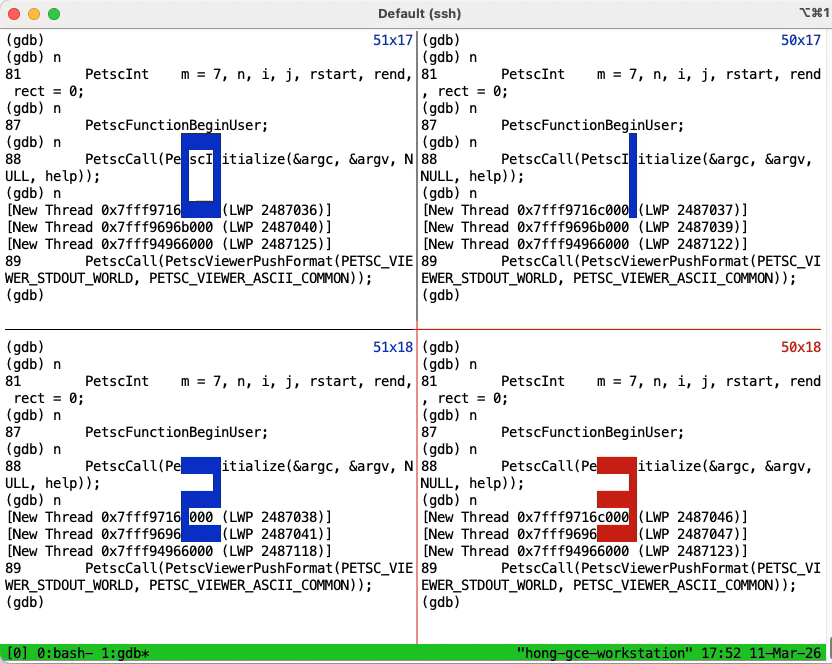
To close or kill the current window, use C-b &. To save typing, I keep the following configuration in $HOME/.tmux.conf:
set-option -g mouse on
bind-key -n C-c kill-window
The first option enables mouse support, allowing you to select panes with the mouse and resize them by dragging their borders.
The second option binds Ctrl+c to kill-window, so you can exit debugging with the familiar Ctrl+c command.
tmux is a powerful tool, and the full documentation can be found here. However, for MPI debugging you only need the few commands listed at the end of this article.
If you are debugging many MPI processes, you may find gdb’s copyright message annoying. Adding -q to the gdb arguments suppresses it.
tmpi supports MPICH and Open MPI on Linux. Unfortunately, it does not support macOS. This is certainly a feature that the community could work on.
Another limitation is that once a debugging session ends—i.e., when the program finishes—you cannot rerun the code within the same session (in a normal gdb session you could simply type run). Instead, you need to exit tmpi and start it again.
Summary
| Action | Command |
|---|---|
| Install tmpi | git clone https://github.com/Azrael3000/tmpi.git; chmod 700 tmpi/tmpi; add it to your $PATH |
| Debug with tmpi | tmpi <np> gdb --args ./test <options> |
| Zoom in/out | Ctrl+b, then z |
| Switch panes | Ctrl+b, then { for the previous pane and } for the next pane, or simply use the mouse |
| Show MPI ranks | Ctrl+b, then q |
| Quit debugging | Ctrl+b, then & |